Guide
How to use SFTP on a Mac
SFTP (SSH File Transfer Protocol) is the secure way to move files to and from a server. macOS can do it from the terminal, and a native app makes it drag-and-drop simple.
Published July 16, 2026 · By Tugay Pala, Useroam Teknoloji
1. SFTP from Terminal
Open Terminal and start a session:
sftp username@server-addressThen use these commands inside the session:
ls          # list remote files
cd /var/www # change remote directory
lcd ~/Sites # change local directory
get file    # download
put file    # upload
bye         # quit
2. Quick one-off transfers with scp
scp local-file username@server:/remote/path      # upload
scp username@server:/remote/file ./              # download
3. A native dual-pane SFTP client
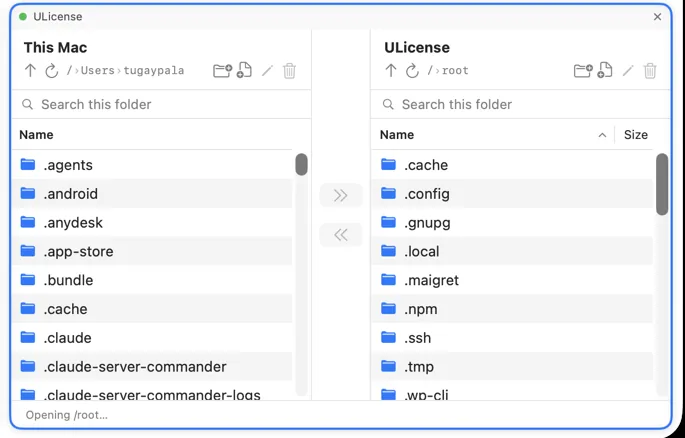
For regular transfers, typing commands gets old fast. Noden gives you a dual-pane SFTP browser — local on one side, remote on the other — with drag-and-drop upload and download, and remote editing: open a file in a Mac editor and it uploads back on save. Because Noden is also an SSH client, your terminal and files are in the same window.
brew install --cask useroamteknoloji/tap/nodenWhich of the three fits your job
All three move files over the same SSH connection; the difference is how much friction there is when the job is not a single file.
| One file, once | scp is fastest — nothing to set up, one line, done. |
|---|---|
| Browsing before you decide | Command-line sftp works but you are listing directories blind. A dual-pane client shows both sides at once. |
| Editing a config on the server | Open the remote file in your own editor; saving sends it back over the same connection, with no download-edit-upload cycle. |
| The same file to many servers | Saved connections plus broadcast input in the terminal beside the file pane. |
| Behind a bastion | Set a saved connection as the jump host; the file pane follows the same route. |
The part that usually goes wrong: permissions
Most failed transfers are not transfer problems. Three checks, in order:
- Can your user write there at all?
ls -ld /target/dirshows the owner and mode. Uploading into a directory owned by root as a normal user fails no matter which client you use. - Did the file land with the wrong owner? SFTP writes as the user you logged
in with. If a service needs to read it,
chownit afterwards — in Noden the terminal for that same server is one pane over, so it is two keystrokes rather than another app. - Is the disk actually full?
df -h. A truncated upload and a permission error look similar from the client side.
Credentials for all of this stay in the macOS Keychain rather than in an application config file, and a connection can point at a vault entry so rotating a password once updates every connection that uses it.
Frequently asked questions
Does macOS have an SFTP client built in?
Yes, the sftp command is available in Terminal. For a graphical dual-pane experience, use an app like Noden.
Can I edit remote files over SFTP on a Mac?
Yes. Noden opens a remote file in a Mac editor and uploads your saved changes back automatically.
Is SFTP the same as FTP?
No. SFTP runs over SSH and is encrypted; plain FTP is not. Noden uses SFTP over SSH.
See also: How to use SSH on Mac · Mac SFTP client · WinSCP for Mac · FileZilla alternative